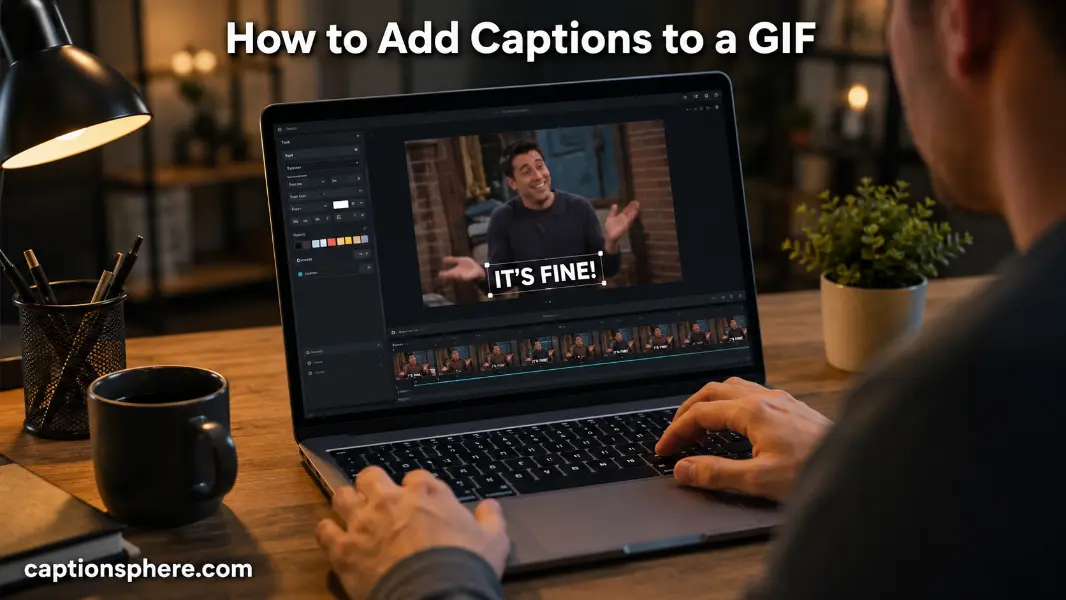
GIFs make conversations, social media posts, and marketing content more engaging, but sometimes a looping animation needs a few words to explain the joke, tell a story, or grab attention. Learning how to add captions to a GIF helps you create content that’s more accessible, entertaining, and easier to understand, even when viewed without sound.
Whether you’re posting on Instagram, sharing in a group chat, uploading to X, creating a meme, or making promotional content, the right caption can completely change the meaning of a GIF. Below, you’ll find simple ways to caption GIFs on different devices, helpful editing tips, and common mistakes to avoid.
Why Add Captions to a GIF? 💬
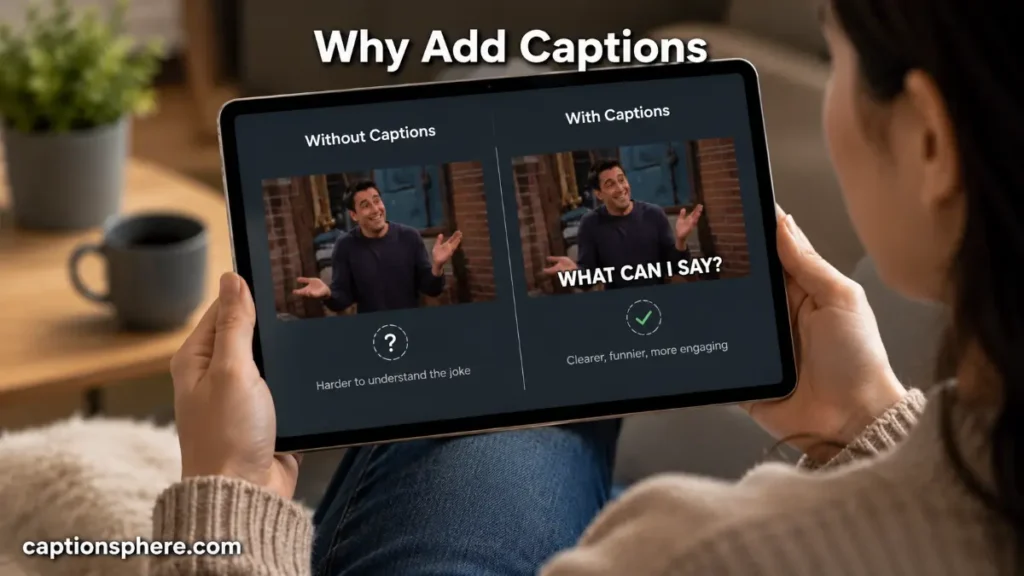
Adding captions works well when you want viewers to understand the context instantly. They can make a reaction GIF funnier, explain what’s happening, or improve accessibility for people watching without audio.
- Explain the joke more clearly.
- Add personality to a reaction GIF.
- Make memes easier to understand.
- Improve accessibility.
- Highlight key moments.
- Create branded social content.
- Share quotes or punchlines.
- Add storytelling elements.
- Increase viewer engagement.
- Make educational GIFs easier to follow.
How to Add Captions to a GIF on Your Phone 📱
Most modern mobile editing apps make it easy to place text over a GIF. You can customize the font, color, size, animation, and position before saving the finished file.
- Open a GIF editing app.
- Import your GIF.
- Select the Text tool.
- Type your caption.
- Choose a readable font.
- Adjust size and color.
- Position the text carefully.
- Preview the animation.
- Save the edited GIF.
- Share it wherever you like.
How to Add Captions to a GIF on a Computer 💻
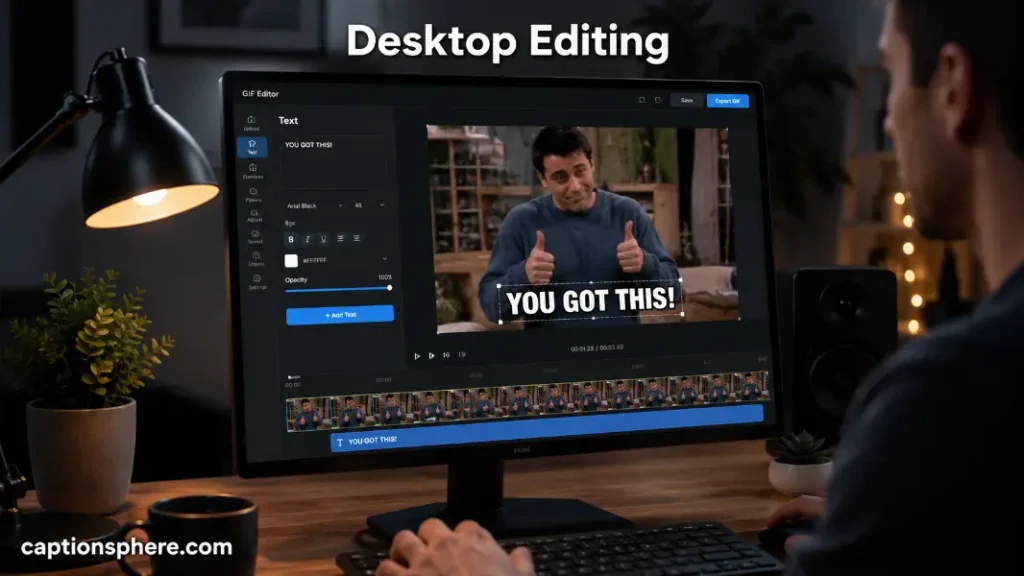
Desktop editing gives you more control over fonts, timing, effects, and positioning. This is useful for creators making memes, tutorials, or branded content.
- Upload the GIF to an editor.
- Add a text layer.
- Choose the font style.
- Position the caption.
- Adjust animation timing if supported.
- Keep text inside safe margins.
- Preview multiple loops.
- Export the finished GIF.
- Check file size.
- Upload to your preferred platform.
Best Apps to Caption GIFs 🎨
Different tools offer different features. Choose one based on your editing needs.
- Canva
- Kapwing
- EZGIF
- GIPHY
- Adobe Express
- ImgPlay
- GIF Maker
- VEED
- FlexClip
- ImgFlip
Each offers varying levels of customization, templates, and export options.
Tips for Writing Better GIF Captions ✍️
A caption should complement the animation rather than distract from it. Short, readable text usually performs best.
- Keep it brief.
- Match the GIF’s mood.
- Avoid covering important details.
- Use high-contrast colors.
- Limit punctuation.
- Use humor naturally.
- Make the message easy to read.
- Test on mobile screens.
- Stay consistent with your brand.
- Proofread before exporting.
Where to Place GIF Captions 📍
The position of your text affects readability. Leave enough space so viewers can enjoy the animation without obstruction.
- Top of the GIF
- Bottom of the GIF
- Above the subject
- Empty background areas
- Split across two lines
- Center only when appropriate
- Avoid covering faces
- Leave margins
- Test different placements
- Preview before saving
Choosing the Right Font 🖋️
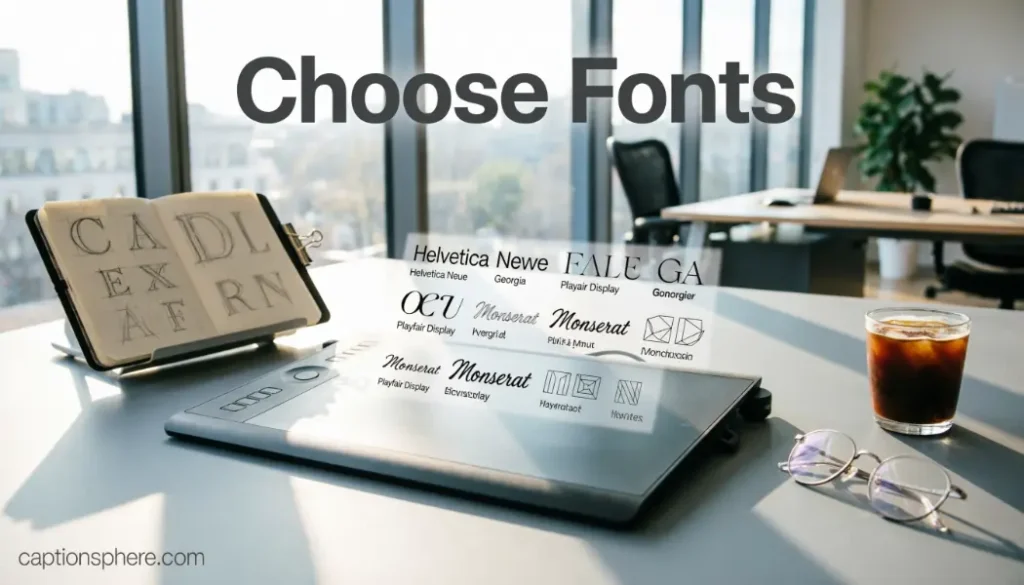
Fonts influence how professional or playful your GIF appears.
- Sans-serif fonts for readability.
- Bold text for memes.
- Script fonts sparingly.
- Large enough for mobile viewing.
- High contrast against backgrounds.
- Consistent typography.
- Avoid decorative fonts.
- Use outlines if necessary.
- Limit font combinations.
- Keep branding consistent.
Common Mistakes to Avoid ⚠️
Even a great GIF can lose impact if the caption isn’t well designed.
- Tiny text.
- Overly long sentences.
- Poor color contrast.
- Blocking important visuals.
- Too many fonts.
- Excessive animations.
- Spelling mistakes.
- Low-quality exports.
- Ignoring accessibility.
- Crowded layouts.
Accessibility Tips for GIF Captions ♿
Accessible captions help more people understand your content.
- Use clear language.
- Maintain sufficient contrast.
- Keep text readable.
- Avoid flashing effects.
- Leave enough display time.
- Break long captions into short phrases.
- Test on small screens.
- Avoid excessive abbreviations.
- Consider color blindness.
- Review before publishing.
Using Captioned GIFs for Social Media 📲
Captioned GIFs work across many platforms and content formats.
- Instagram Stories
- Instagram Reels
- Facebook posts
- X replies
- Pinterest Pins
- Discord chats
- Slack conversations
- Blog articles
- Email campaigns
- Marketing presentations
Adapt the caption to match the audience and platform style.
Conclusion
Knowing how to add captions to a GIF makes your content more engaging, easier to understand, and more accessible. Whether you’re creating memes, social media posts, tutorials, or marketing graphics, a clear caption helps viewers understand the message immediately. Focus on readable text, thoughtful placement, and concise wording so your GIF looks polished and communicates exactly what you want.
Frequently Asked Questions
How do I add captions to a GIF for free?
Many free online editors and mobile apps let you upload a GIF, insert text, customize its appearance, and export the finished animation without paying.
Can I add captions to a GIF on my iPhone?
Yes. Several iPhone apps support GIF editing with customizable text, fonts, colors, and placement.
Can Android users caption GIFs?
Absolutely. Android offers multiple apps that allow you to edit GIFs and overlay captions quickly.
Will adding captions reduce GIF quality?
Quality depends on the editor and export settings. Choosing a high-quality export usually preserves most of the original appearance.
Can I animate the caption itself?
Yes. Many advanced GIF editors support animated text effects such as fading, sliding, or scaling.
What’s the best font for GIF captions?
Simple, bold sans-serif fonts are generally the easiest to read across different screen sizes.
How long should a GIF caption be?
Short captions are usually the most effective. One concise sentence or a few words often works best.
Are captioned GIFs better for social media?
Captioned GIFs can improve clarity, accessibility, and viewer engagement, especially when people browse with sound turned off.