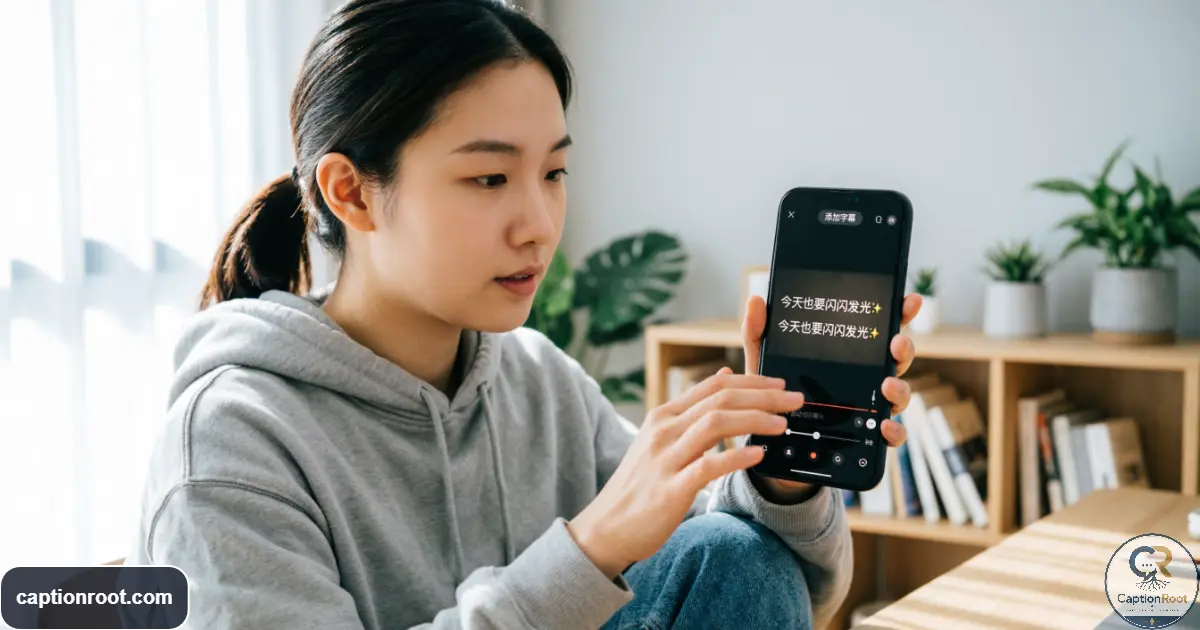
Learning how to add captions on TikTok is straightforward once you know which tool you need. TikTok’s built-in captions can automatically transcribe spoken words in a video, and you can review the generated text before publishing. TikTok also provides other text tools for videos, which are useful when you want to add a title, label, hook, or written message instead of transcribing speech.
The important distinction is that captions, manual text, and a TikTok post description are not the same thing. This guide focuses on captions that appear with your video, while also showing when the Text tool makes more sense, how to fix inaccurate transcription, what to try when the Captions option is missing, and how to make your finished video easier to follow.
What Kind of Captions Do You Want to Add?
Before tapping through TikTok, decide what you actually want on the screen.
Auto-generated captions transcribe spoken audio. They are useful for talking-head videos, interviews, tutorials, reviews, stories, podcasts, and other videos where someone is speaking. TikTok introduced auto captions as an accessibility feature that converts speech into on-screen text, and creators can edit the generated captions.
Manual text is different. Use TikTok’s Text tool when you want to type a headline, joke, instruction, location, quote, reaction, or other text that does not come directly from speech.
A post description is the written caption associated with the TikTok post itself. It is not the same as text displayed over the video.
For most spoken videos, start with Captions. For a silent video or custom message, use Text.
How to Add Automatic Captions on TikTok
For a video with spoken audio, TikTok’s built-in captioning is usually the simplest option.
- Open TikTok and create or upload your video. Record a new video or choose an existing clip from your device.
- Continue to the editing screen. Look through the available editing tools after recording or uploading.
- Select Captions. Depending on the current version of TikTok and your account, the control may appear in a different location or under additional editing options.
- Let TikTok process the speech. The app generates text from the spoken audio.
- Review the transcript carefully. Read through every line rather than assuming the automatic transcription is correct.
- Edit mistakes. Correct names, numbers, slang, technical terms, missing words, and other transcription errors.
- Save the edited captions.
- Preview the video. Make sure the text is readable and does not cover important parts of the video.
- Continue with your post and publish when everything looks right.
TikTok’s own documentation describes creator captions as automatically generated text based on a video’s speech, with the ability to edit the generated captions.
A useful habit
Do not treat auto-generated captions as a final transcript. Speech recognition can misinterpret names, accents, background noise, abbreviations, or words that are uncommon. A 20-second review can make the finished video much clearer.
How to Edit and Fix TikTok Auto Captions
Automatic transcription saves time, but the generated text still deserves a quick proofread.
Watch the video while checking for:
- Incorrect names
- Misspelled places
- Numbers written incorrectly
- Missing words
- Words joined together
- Wrong punctuation
- Slang that was transcribed incorrectly
- Technical vocabulary
- Multiple people being confused with one speaker
If two people are talking, make it clear who is speaking when the distinction matters. TikTok has specifically highlighted speaker identification and caption accuracy as useful accessibility practices.
For example, if a video contains:
Alex: “We should leave at seven.”
Sam: “Seven works for me.”
A caption transcript that makes it unclear who said each line can make the conversation harder to follow.
Also check whether stickers, polls, text boxes, or other visual elements cover the captions. TikTok has recommended keeping those elements from blocking caption text.
How to Add Text Manually to a TikTok Video
Not every piece of text on a TikTok needs to come from spoken dialogue.
Use the Text tool when you want to add something you intentionally wrote yourself.
A simple workflow is:
- Create or upload your video.
- Move to the editing screen.
- Choose Text.
- Type your message.
- Adjust its appearance if the available options allow it.
- Set when the text should appear and disappear.
- Preview the video.
- Move or edit the text if it blocks an important visual element.
- Continue to the publishing screen.
Manual text works particularly well for silent or mostly visual content.
For example:
- A recipe can show “Add the garlic after the onions soften.”
- A travel video can show “Three days in Chicago.”
- A workout clip can show “Final set.”
- An outfit video can show “What I wore to dinner.”
- A funny clip can add a reaction that was never spoken aloud.
The key distinction is simple: Captions transcribe speech; Text lets you write whatever information you want viewers to see.
How to Change Caption Style, Position, and Timing
Readable captions should be easy to follow without competing with the video.
When TikTok gives you styling or positioning controls, check the finished result rather than choosing an option and immediately publishing.
Keep these points in mind:
- Use enough contrast between text and its background.
- Keep lines short enough to scan comfortably.
- Give viewers enough time to read each line.
- Avoid placing important text directly over faces.
- Keep captions away from areas likely to be covered by TikTok’s interface.
- Check the video on a phone before publishing.
- Make sure other stickers or text do not cover the captions.
TikTok has continued to develop accessibility features, including auto-generated captions, text-to-speech, alternative text for photos, and improved text visibility.
If your video contains important spoken information, accurate captions matter more than decorative styling. A simple, readable caption that matches the dialogue is more useful than an elaborate design that is difficult to read.
What to Do If the Captions Button Is Missing
One of the most frustrating situations is reaching the editing screen and not seeing the option you expected.
Start with these checks:
- Make sure you are editing the video itself. Caption controls belong to the video creation/editing workflow, not simply the post-description field.
- Look through the available editing tools. TikTok’s interface can change, so the control may not appear exactly where an older tutorial shows it.
- Check for additional editing options. Some controls can be grouped or moved as TikTok changes its interface.
- Update TikTok if an update is available.
- Restart the app and try the video again.
- Try another video. This can help determine whether the issue is related to one particular upload.
- Check TikTok Studio if you use it for creation. TikTok Studio includes creation and editing tools, including auto-caption functionality.
- Look for current TikTok help information if the option remains unavailable.
Do not assume that a tutorial showing a particular button location will match every phone or account. TikTok changes its creation interface, and feature availability can vary.
If automatic captions are unavailable, manually adding text may still provide a practical alternative for important information.
Can You Add Captions After Posting on TikTok?
This is where it helps to separate video captions from the post description.
TikTok’s creator caption workflow is designed around the video editing process, where the speech is transcribed and the generated text can be edited before publishing.
If you have already published a video and discover that the on-video captions are wrong or missing, do not assume that every version of TikTok offers the same post-publishing editing controls. Available options can change as TikTok updates its app.
For an important video, the safest workflow is to review captions before publishing.
If the published video cannot be corrected through the editing options available to you, an alternative is to prepare a corrected version with captions already added and upload that version as a new post.
That is different from editing the written description attached to a post. Changing the post description does not automatically add words to the video itself.
How to Add Captions to a TikTok Without Speaking
A silent video does not give automatic speech recognition anything to transcribe.
That does not mean it has to be text-free.
Use manual text when viewers need context that would otherwise be communicated through speech.
For example:
Travel:
“48 hours in Seattle”
Cooking:
“Simmer for 10 minutes”
Fitness:
“Three rounds. No rest between exercises.”
Fashion:
“Casual dinner outfit”
Gaming:
“Wait for the next move.”
Photo post:
“Scenes from this weekend”
This approach is especially useful for tutorials, recipes, travel clips, workouts, outfit videos, photo posts, and visual demonstrations.
If the video contains music, natural sounds, or ambient audio but no spoken dialogue, manual text can still provide the information that viewers need.
TikTok Captions vs. Subtitles vs. Text
These terms overlap in everyday conversation, but they are useful to separate when you’re editing a video.
| Feature | What it does | Best use |
|---|---|---|
| Auto captions | Converts spoken audio into text | Talking videos |
| Manual Text | Adds words you type yourself | Hooks, labels, instructions, reactions |
| Subtitles | Displays spoken dialogue as text | Dialogue-heavy videos |
| Post description | Adds written copy to the TikTok post | Context, hashtags, written post copy |
| External captions | Creates captions using another editor | Advanced styling or cross-platform workflows |
TikTok itself describes auto captions as a way to automatically generate subtitles from speech.
In practical terms, you do not need to worry too much about terminology. Ask one question first:
Do I need to transcribe what someone says, or do I need to put my own words on the screen?
If you need transcription, use captions. If you need your own wording, use Text.
How to Make TikTok Captions Easier to Read
Adding captions is only useful if viewers can comfortably read them.
Keep the wording accurate
Proofread automatically generated text before publishing. A single incorrect name or changed word can alter the meaning of a sentence.
Avoid overcrowding
Do not add large blocks of text simply because there is room on the screen. Short, readable phrases are easier to follow.
Protect important visuals
Keep captions away from faces, product details, demonstrations, and other information that viewers need to see.
Watch the entire video with captions on
Do not check only the first few seconds. A caption may look fine at the beginning and become difficult to read later because the background or subject changes.
Think about accessibility
TikTok has described auto captions as part of its accessibility work and continues to maintain captioning alongside other accessibility features.
For videos with multiple speakers, make speaker changes clear when necessary. If the visual layout makes it difficult to tell who is speaking, adding a name or other clear identifier can help. TikTok has specifically recommended this type of editing in its accessibility guidance.
Should You Use TikTok Captions or an External Caption Tool?
For many videos, TikTok’s native tools are enough. External software becomes more useful when you need more control.
| Your situation | Practical choice |
|---|---|
| Simple talking video | TikTok auto captions |
| You want to correct a few transcription errors | TikTok captions |
| Silent video | TikTok Text |
| Custom branded subtitle design | External editor |
| Same captioned video for several platforms | External editor may be useful |
| Fast publishing with minimal editing | Native TikTok tools |
| Detailed subtitle formatting | External captioning workflow |
TikTok Studio also provides creation and editing tools, including auto captions, so creators who work outside the standard mobile workflow have another first-party option.
There is no need to use an external tool just because one exists. Start with TikTok’s own tools when they meet the needs of your video.
TikTok Caption Troubleshooting Checklist
If your captions are not working as expected, run through this list before rebuilding the entire video.
Captions option missing?
- Check the editing screen carefully.
- Look through additional editing controls.
- Update TikTok.
- Restart the app.
- Try another video.
- Check TikTok Studio if appropriate.
- Review every generated line.
- Correct names and numbers.
- Check slang and technical terms.
- Listen for words lost because of background noise.
- Verify punctuation and sentence breaks.
Captions are difficult to read?
- Increase contrast where possible.
- Shorten crowded text.
- Move captions away from busy areas.
- Keep other stickers from covering them.
- Watch the final video on a phone.
You have a silent video?
- Use manual Text instead of relying on speech transcription.
You want captions after publishing?
- Check the editing options currently available to your account.
- If the video itself cannot be corrected, prepare a revised captioned version for a new upload.
Conclusion
Knowing how to add captions on TikTok becomes much easier once you separate automatic captions from manual Text. Use automatic captions when you want TikTok to transcribe spoken dialogue, then proofread the result before publishing. Use Text when you need custom wording, especially for silent or highly visual videos. If the Captions option is missing, check the editing controls, app version, and TikTok Studio rather than assuming the feature has disappeared permanently. Most importantly, treat captions as part of the viewing experience: accurate words, sensible timing, readable placement, and clear speaker changes can make a video easier to follow for more people.
Frequently Asked Questions
How do I turn on auto captions on TikTok?
Create or upload your video and open the editing screen. Look for the Captions or auto-caption control, then let TikTok transcribe the spoken audio. Review and edit the generated text before publishing. TikTok introduced creator auto captions specifically to transcribe speech into on-screen subtitles.
Why don’t I have the Captions option on TikTok?
The interface can change, and the location or availability of a feature may differ by account, app version, device, or rollout. Check the editing tools, update TikTok, restart the app, and look at TikTok Studio if you use it. If the feature remains unavailable, manual Text can be an alternative for information you need to display.
Can I edit TikTok auto captions?
Yes. TikTok’s creator caption system allows generated caption text to be edited after transcription. Always review the result for names, numbers, slang, and other words that speech recognition may misunderstand.
Can I manually add captions to TikTok?
Yes. If you want to type your own words rather than transcribe speech, use TikTok’s Text tool. This is especially useful for silent videos, instructions, labels, hooks, reactions, and other information that was never spoken aloud.
Can I add captions to a TikTok after posting?
Do not assume that every account or app version provides the same post-publishing controls for on-video captions. The most reliable workflow is to generate and review captions during video editing before publishing. If the published video cannot be corrected through the available tools, you may need to create and upload a corrected version.
Can I add captions to a TikTok without talking?
Yes, but automatic speech captions are not the right tool for a video with no spoken dialogue. Add the information manually with Text instead. This works well for travel clips, recipes, workouts, outfit videos, demonstrations, photo posts, and other visual content.
Are TikTok captions the same as the caption below a TikTok video?
No. On-video captions display text with the video, usually to represent spoken dialogue. The written post description is separate and appears as part of the TikTok post information.
Can viewers turn TikTok captions off?
TikTok has provided viewer controls for turning captions off. The exact interface can change, but TikTok has documented a captions control in the sharing interface for viewers.